Excel

Excel

Top 20 Excel Shortcuts to Work Faster Like a Pro (Hindi में पूरा गाइड)

Excel सीखना आसान है, लेकिन प्रो की तरह तेज़ी से काम करना सिर्फ शॉर्टकट्स से आता है।अगर आप Office, Data Entry, MIS, Accounting या Data Analysis में करियर बनाना चाहते हैं,तो ये Top 20 Excel Shortcuts आपको हर दिन 2× समय बचाने में मदद करेंगे। चलिए शुरू करते हैं — Zero Effort, Maximum Speed! ⭐ 1. Ctrl + N — नई Excel Workbook खोलें जब भी आपको तुरंत नई फ़ाइल पर काम शुरू करना हो, यह shortcut समय बचाता है। ⭐ 2. Ctrl + O — पहले से बनी फ़ाइल खोलें बार-बार File → Open में जाने की जरूरत नहीं—एक शॉर्टकट से काम! ⭐ 3. Ctrl + S — अपनी फ़ाइल सेव करें सबसे जरूरी शॉर्टकट।हर कुछ मिनट में Ctrl+S जरूर करें—डेटा loss से बचाता है। ⭐ 4. Ctrl + C — Copy किसी भी डेटा को कॉपी करने का सबसे तेज तरीका। ⭐ 5. Ctrl + V — Paste कॉपी किए गए कंटेंट को तुरंत पेस्ट करें। ⭐ 6. Ctrl + X — Cut डेटा को एक जगह से हटाकर दूसरी जगह रखने के लिए। ⭐ 7. Ctrl + Z — Undo गलती हो गई? एक झटके में वापस जाएं। ⭐ 8. Ctrl + Y — Redo Undo वापस चाहिए? यह काम आएगा। ⭐ 9. Ctrl + F — Find बड़ी शीट में किसी word, number, या name को खोजने का सबसे तेज तरीका। ⭐ 10. Ctrl + H — Find & Replace एक साथ कई values बदलने के लिए perfect shortcut। ⭐ 11. Ctrl + A — पूरा डेटा Select पूरी sheet का डेटा एक क्लिक में select करें। ⭐ 12. Ctrl + Shift + L — Filters On/Off Data analysis करते समय Filter सबसे ज़रूरी होता है।एक shortcut से apply/remove करें। ⭐ 13. Ctrl + Arrow Keys — Data Range की End तक Jump बहुत बड़ी शीट हो?एक click में last row / last column तक पहुंचें। ⭐ 14. Ctrl + Shift + Arrow Keys — पूरी Row/Column Select करें Quick selection के लिए perfect। ⭐ 15. Ctrl + Shift + “+” — नई Row या Column जोड़ें Insert → Row/Column में जाने की जरूरत नहीं। ⭐ 16. Ctrl + “-” — Row या Column Delete करें अनचाहे data को तुरंत हटाएं। ⭐ 17. F2 — सेल में Edit Mode Double-click करने की जरूरत नहीं—F2 instantly edit शुरू कर देता है। ⭐ 18. Alt + = — AutoSum Total निकालने का सबसे तेज तरीका।Excel खुद automatically range select कर लेता है। ⭐ 19. Ctrl + Shift + : — Current Time Insert करें Time-stamp जोड़ने के लिए। ⭐ 20. Ctrl + ; — Current Date Insert करें तुरंत तारीख जोड़ें—billing, accounting में बहुत काम आता है। 🎯 Bonus: ये Shortcuts सीखकर आप क्या कर पाओगे? ✔ Excel में 50% तेजी से काम✔ Data Entry गलती-रहित✔ Office में Pro जैसा काम✔ Interviews में strong command show✔ MIS/Data Analyst बनने की strong base 🔥 Conclusion Excel में एक्सपर्ट बनने का पहला कदम है Keyboard Shortcuts सीखना।ऊपर दिए गए Top 20 Excel Shortcuts आपको हर दिन घंटों बचाएंगे और productivity बढ़ाएंगे।
Excel

2025 में हर Excel Beginner को आने चाहिए ये 10 जरूरी Excel Formula

🟢 Introduction – Excel सीखना क्यों ज़रूरी है? अगर आप Student, Job Seeker, Accountant या Business Owner हैं, तो Excel आपके रोज़मर्रा के काम को आसान बनाने वाला सबसे बढ़िया टूल है।लेकिन Excel में तेज़ बनने के लिए आपको Formulas का basic knowledge होना चाहिए। इस ब्लॉग में हम जानेंगे —👉 2025 में हर Beginner को आने चाहिए ये 10 जरूरी Excel Formulas👉 उनके आसान examples👉 और real-life uses जो आपके काम को 10x आसान बना देंगे। 🧩 1. SUM Formula – जोड़ना आसान बना दे Formula: Use: किसी भी column या range के सभी numbers को जोड़ने के लिए। Example: अगर A1 से A10 तक सेल में आपके sales data हैं, तो ये formula total sales दिखाएगा। 📊 2. AVERAGE Formula – औसत निकालना Seconds में Formula: Use: किसी भी range का average निकालने के लिए। Example: Students के marks या monthly expense का average निकालने में helpful। 🔢 3. COUNT Formula – कितने नंबर हैं ये जानने के लिए Formula: Use: सिर्फ number वाले cells की गिनती करता है।Example: अगर कुछ cells में text और कुछ में number हैं, तो ये सिर्फ number वाले count करेगा। 📝 4. COUNTA Formula – खाली नहीं, सब गिनो Formula: Use: Empty cells को छोड़कर total filled cells गिनता है।Example: Attendance sheet में कितने students present हैं, ये जानने के लिए perfect। 🤔 5. IF Formula – Condition Based Result Formula: Use: Condition check करने के लिए।Example: Marks 50 से ज़्यादा हैं तो “Pass”, वरना “Fail” दिखाएगा। 🔍 6. VLOOKUP Formula – Data Search करने का King Formula: Use: किसी table में value ढूंढने के लिए।Example: Roll number से student का नाम या salary निकालना। Tip: 2025 में नया formula XLOOKUP ज़्यादा advanced है (उस पर अगला ब्लॉग बनेगा 😉) 🧮 7. MAX और MIN – सबसे बड़ा या छोटा नंबर ढूंढो Formula: Use: Range में highest या lowest value जानने के लिए।Example: Highest salary या lowest marks ढूंढने में helpful। ✂️ 8. CONCATENATE / TEXTJOIN – दो या ज़्यादा Text जोड़ना Formula (Old): Formula (New): Use: Name + Surname को एक cell में combine करने के लिए। 🧠 9. ROUND Formula – Perfect Number Formatting Formula: Use: Decimal numbers को fix digits तक round करने के लिए।Example: 123.456 → 123.46 ⏰ 10. TODAY & NOW Formula – Date और Time Auto Show करें Formula: Use: System की current date और time automatically दिखाने के लिए।Example: Report में auto update होती तारीख़ डालने के लिए perfect। 🚀 Bonus Tip – इन formulas को याद कैसे रखें? 🧾 Conclusion – Excel Expert बनने की पहली सीढ़ी इन 10 formulas को अच्छे से सीखकर आप 70% Excel tasks easily कर पाएंगे —चाहे वो data entry हो, reporting, accounting या analysis। 👉 Practice करें + Real examples पर apply करेंतभी आप Excel में “Beginner से Pro” बन पाएंगे।

Excel

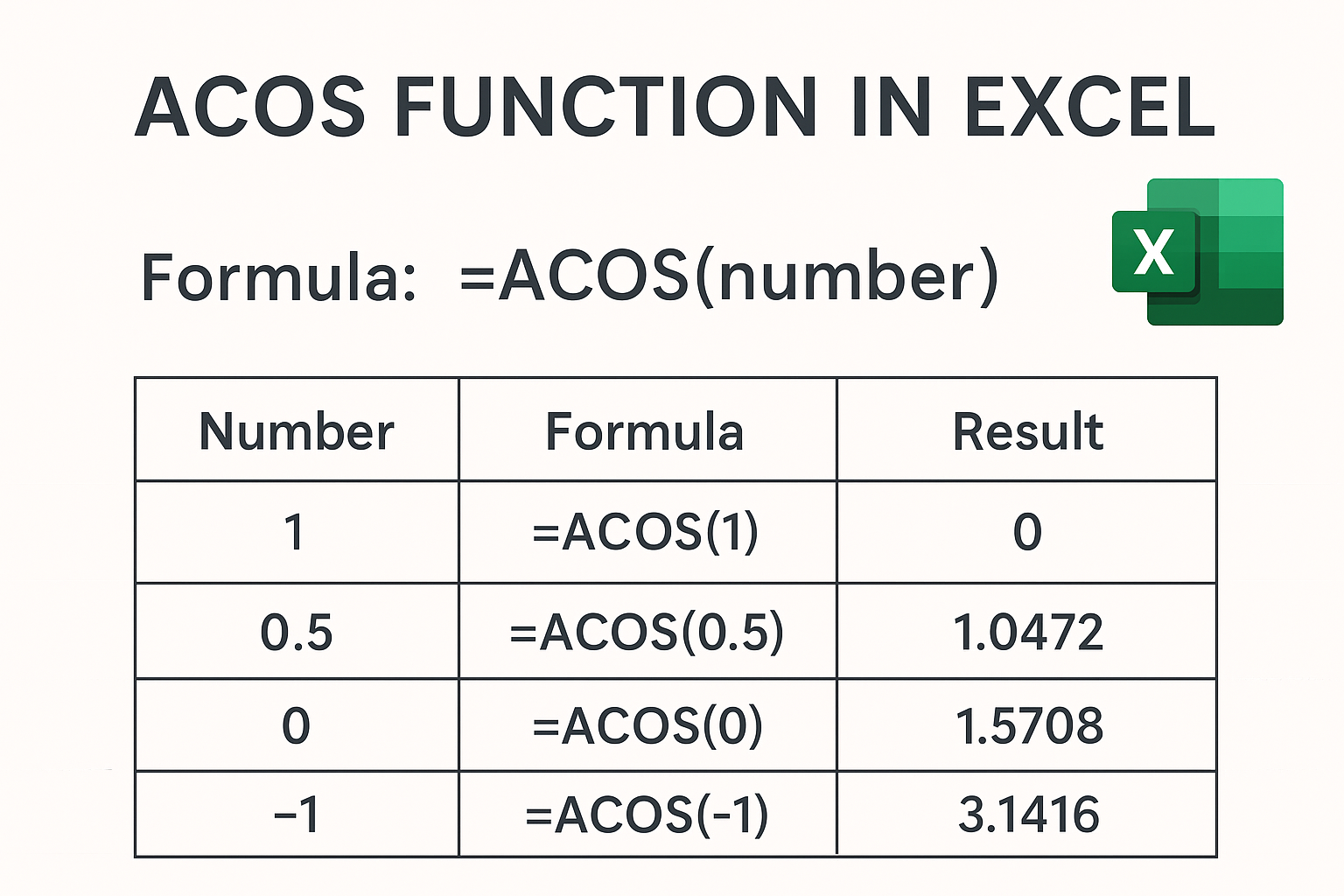
ACOS Function in Excel

Introduction Excel में Mathematical और Trigonometric Functions का उपयोग scientific और engineering calculations के लिए किया जाता है। उन्हीं में से एक है ACOS Function। 👉 यह function किसी संख्या का arccosine (inverse cosine) value देता है। What is ACOS Function in Excel? ACOS Function Excel में किसी दिए गए number का arccosine निकालने के लिए उपयोग होता है। 👉 Formula: Syntax Arguments Example of ACOS Function Number Formula Result (in radians) Result (in degrees) 1 =ACOS(1) 0 0° 0.5 =ACOS(0.5) 1.0472 60° 0 =ACOS(0) 1.5708 90° –1 =ACOS(-1) 3.1416 180° 👉 Degrees में answer लाने के लिए formula में DEGREES function का उपयोग करें: Uses of ACOS Function in Excel ✅ Trigonometry और geometry calculations के लिए।✅ Physics और Engineering में angle निकालने के लिए।✅ Data analysis और mathematical modeling में।✅ जब भी आपको cos⁻¹(x) यानी inverse cosine चाहिए। Excel का ACOS Function एक महत्वपूर्ण trigonometric function है जो किसी भी number का inverse cosine value देता है।यह खासकर scientific, engineering और mathematical calculations में बहुत उपयोगी है। 👉 Pro Tip: अगर आप radians की बजाय सीधे degrees में result चाहते हैं तो =DEGREES(ACOS(number)) का उपयोग करें।

Excel

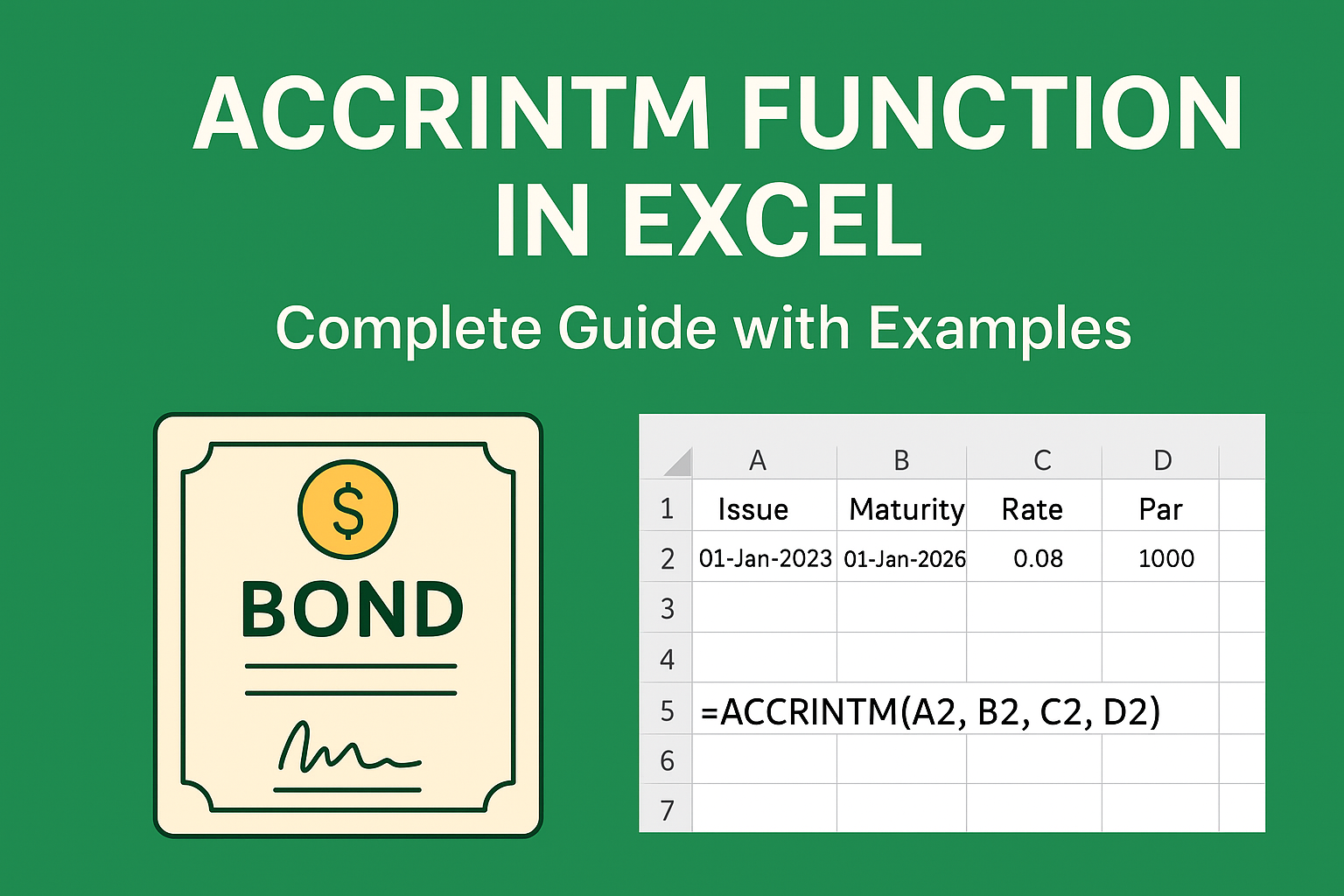
ACCRINTM Function in Excel

Excel में Financial Functions बहुत powerful हैं, खासकर जब बात investment और securities की हो।ACCRINTM Function का उपयोग किसी security (bond या debenture) पर issue date से maturity date तक का total accrued interest निकालने के लिए किया जाता है। 👉 यह function ACCRINT से अलग है क्योंकि यह बीच-बीच की payment dates को नहीं मानता। यह सीधे maturity date पर total accrued interest देता है। What is ACCRINTM Function? ACCRINTM Function Excel में किसी security पर accrued interest at maturity calculate करता है। 👉 Formula: Syntax and Arguments Example of ACCRINTM Function मान लीजिए आपके पास एक bond है: 👉 Formula: 👉 Result:₹240 (approx) – यानी 3 years का accrued interest maturity date तक। Where to Use ACCRINTM Function? ✅ Bonds और Debentures पर maturity तक का interest निकालने के लिए।✅ Financial analysis और investment planning में।✅ Long-term fixed income securities reports बनाने के लिए।✅ Accrued interest schedule और statements तैयार करने में। Difference Between ACCRINT and ACCRINTM Excel का ACCRINTM Function खासकर financial professionals, investors और analysts के लिए बहुत उपयोगी है।यह function आपको maturity date तक का कुल interest बताता है, जिससे आप investments की सही value का अंदाज़ा लगा सकते हैं। 👉 अगर आप bonds या debentures में invest करते हैं या financial reports बनाते हैं, तो यह function आपको ज़रूर आना चाहिए।

Excel

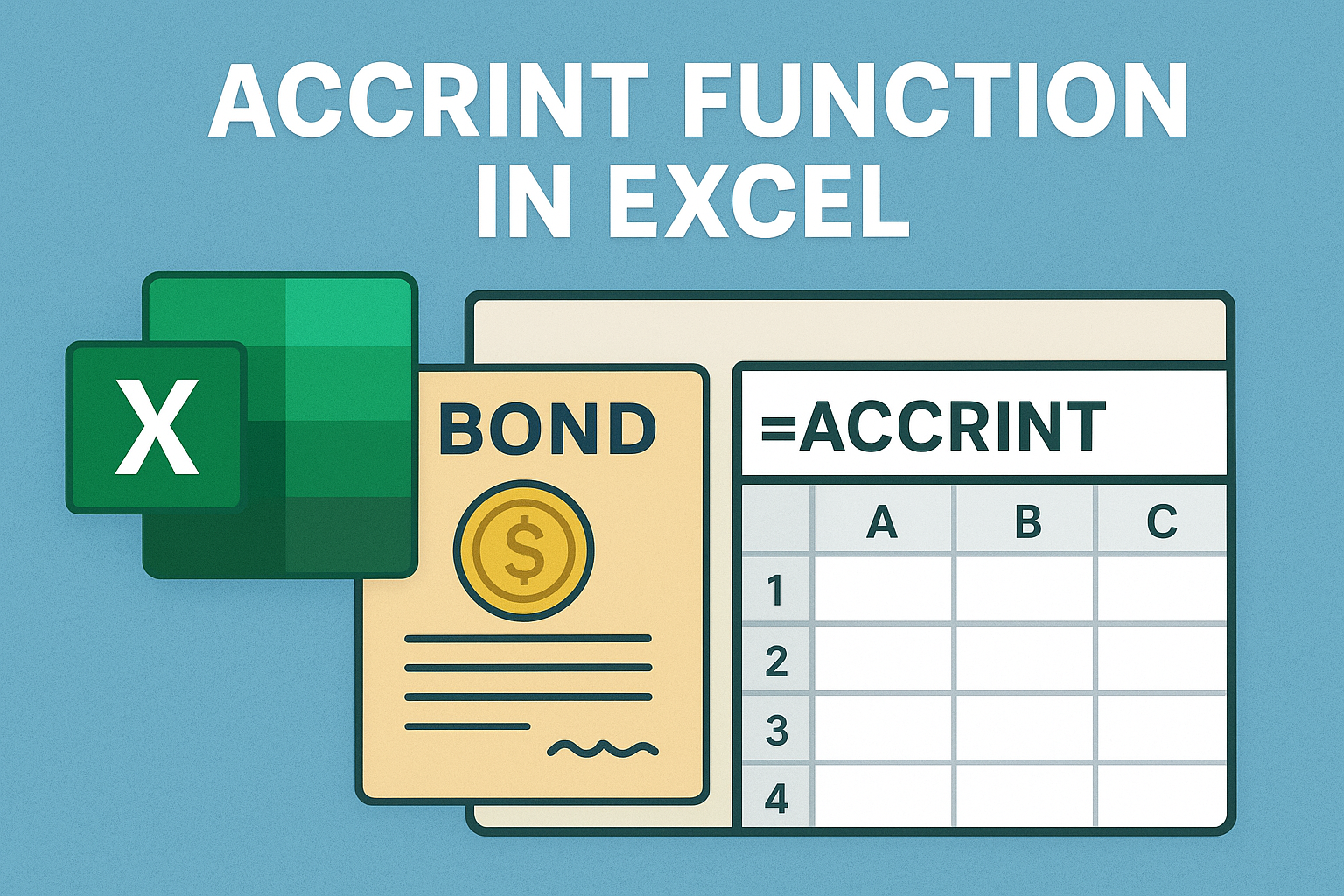
ACCRINT Function in Excel – Complete Guide with Examples

Finance और Investment data analysis के लिए Excel में कई useful financial functions मौजूद हैं। उन्हीं में से एक है ACCRINT Function।यह function किसी security (जैसे bond या debenture) पर accrued interest (यानी तय तारीख तक जमा हुआ ब्याज) calculate करने में मदद करता है। What is ACCRINT Function in Excel? Excel में ACCRINT Function का उपयोग किसी security (bond, stock आदि) पर issue date और settlement date के बीच का accrued interest निकालने के लिए किया जाता है। 👉 इसका उपयोग मुख्यतः bonds, debentures और fixed income securities में किया जाता है। Syntax of ACCRINT Function Arguments Example of ACCRINT Function मान लीजिए एक bond की detail इस प्रकार है: Formula: 👉 Result:₹16.67 (approx) – यानी 2 months का accrued interest। Where to Use ACCRINT Function? Bonds और Debentures पर interest calculation Financial modeling और Investment portfolio analysis Accrued interest reports बनाने के लिए Fixed income securities data analysis Excel का ACCRINT Function investors और financial analysts के लिए बहुत useful है। यह किसी भी security पर issue date और settlement date के बीच का accumulated interest calculate करता है। अगर आप finance, accounting या investment field में काम करते हैं, तो यह function आपके लिए ज़रूरी है।

Excel

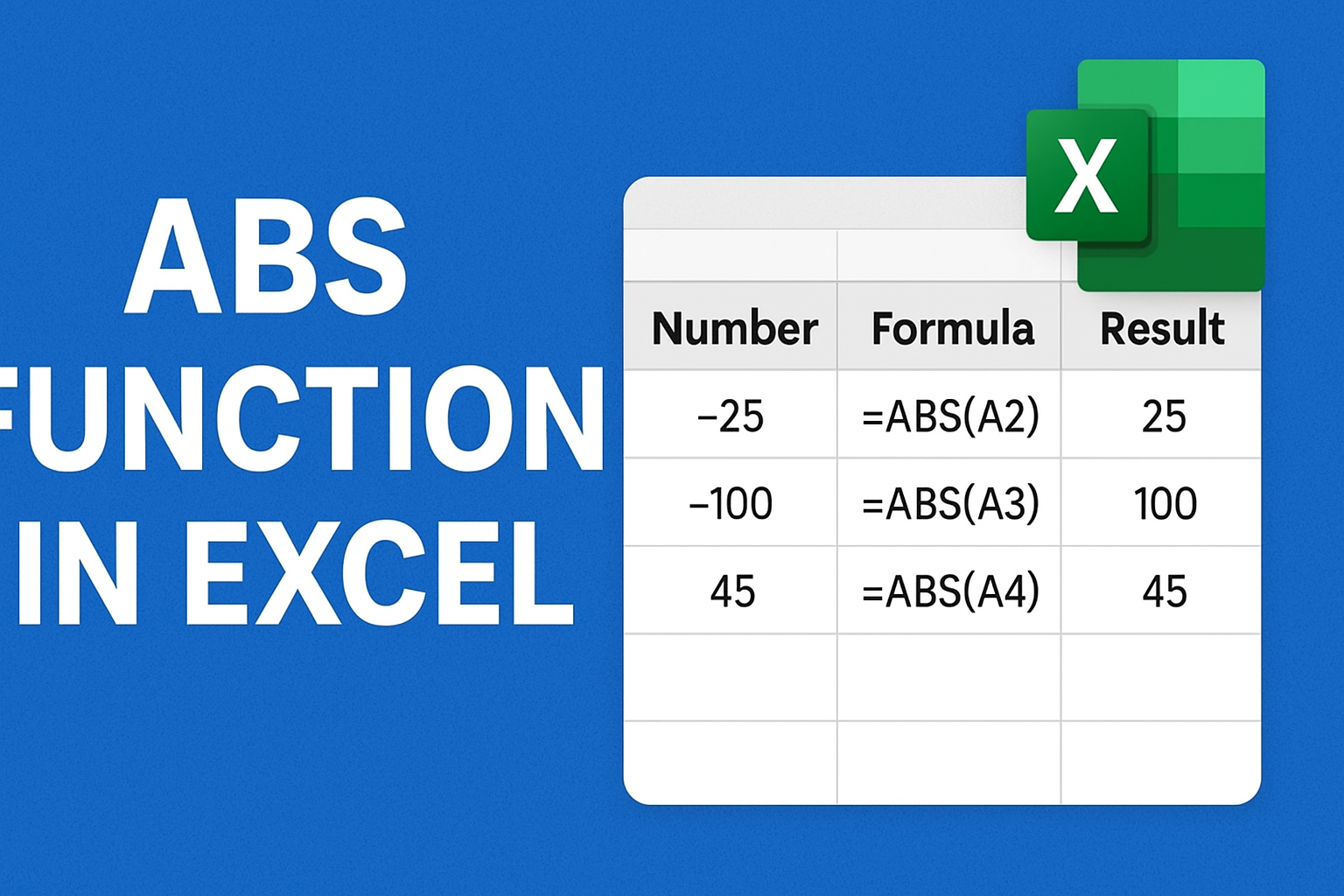
ABS Function in Excel – पूरी जानकारी

Excel में Data Analysis और Calculation के लिए बहुत सारे Built-in Functions हैं। उन्हीं में से एक है ABS Function। यह Function किसी भी number का Absolute Value निकालता है। Absolute value का मतलब है – कोई भी संख्या हमेशा positive value में बदल जाएगी। Excel में ABS Function का उपयोग किसी भी संख्या (Number) का Absolute Value निकालने के लिए किया जाता है।Absolute Value का मतलब है – संख्या का positive value। मतलब: Formula: Syntax Example 1: Negative Number को Positive में बदलना Number Formula Result –25 =ABS(A2) 25 –100 =ABS(A3) 100 45 =ABS(A4) 45 Example 2: Difference निकालने के लिए ABS मान लीजिए आपके पास दो Products की Sales Values हैं और आपको उनका अंतर (Difference) निकालना है। Product A Product B Formula Result 500 800 =ABS(A2-B2) 300 1200 900 =ABS(A3-B3) 300 750 750 =ABS(A4-B4) 0 👉 यहाँ हमने =ABS(A2-B2) का उपयोग किया।क्योंकि 500 – 800 = –300, लेकिन ABS ने इसे Positive 300 में बदल दिया। ABS Function क्यों Useful है? Excel का ABS Function छोटा लेकिन बहुत powerful है। यह किसी भी number को Positive value में बदल देता है और आपके calculations को आसान बना देता है। अगर आप Accounting, Finance, या Data Analysis से जुड़े हैं, तो ABS Function आपको बार-बार काम आएगा।

Excel

What is Excel?

Microsoft Excel is a spreadsheet program developed by Microsoft as part of the Microsoft Office suite. It is widely used for organizing, analyzing, and storing data in a tabular format (rows and columns). Excel provides powerful tools for calculations, data visualization, and automation. Key Features of Excel: Common Uses of Excel: Excel File Formats:

Scroll to Top